You grab your phone first thing in the morning. Then you check it during lunch. Before bed, one more scroll. In busy 2026 life, screens pull you in constant directions. This habit drains focus, hurts sleep, and blurs work from home.
Tracking screen time fixes that. You see real numbers on app use, pickups, and notifications. Better focus follows. Sleep improves. Work-life balance strengthens. Built-in tools on iOS 26, Android 16, Windows 12, and macOS 15 handle most needs. Apps like RescueTime or Qustodio add extras. These steps use free 2026 features, like iOS parental PINs.
Learn how to track your screen time step by step on any device. Start today for clearer habits.
Track Screen Time on iPhone or iPad with Apple’s Built-in Tool
Apple’s Screen Time works on iOS 12 and up, including iOS 26 in 2026. It shows active use in apps, Safari sites, and videos. Background tasks or audio-only play don’t count. This keeps data accurate.
First, open the Settings app. Scroll to Focus, then tap Screen Time. If off, turn it on. Now view All App & Website Activity. Switch to Today or Week view. See total time, top apps, pickups, and notifications.
Data shares across Apple devices with your Apple ID. Weekly reports break down by category, like social or productivity. Families get PIN protection. Parents manage kids’ devices remotely in iOS 26. No need to borrow the phone.
Check your first apps each day. They reveal habits, like email before coffee. For details on iPhone tracking in 2026, see this easy guide from Izoate.
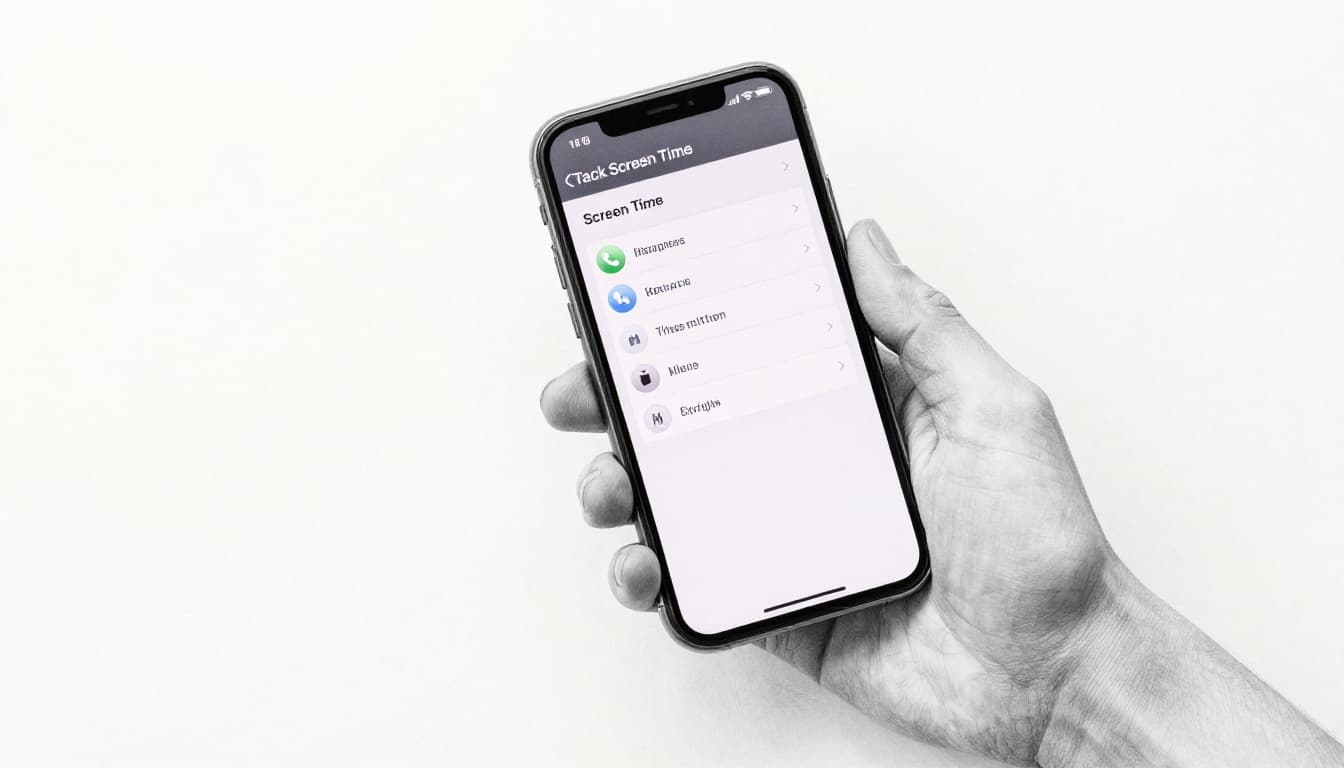
Set a passcode under Lock Screen Time Settings. This blocks changes. iOS 26 adds protected permissions. Apps need the PIN, not Face ID.
Customize Reports and Set Limits on iOS
Tap any app for details. See time spent there. Set App Limits to cap daily use. Downtime blocks non-essential apps at night.
Turn on Block at End of Limit. It stops access after time runs out. Zero minutes fully blocks apps now in iOS 26.
Don’t hide data with Always Allowed lists. They bypass limits. Audio play counts once, no double dips. Review weekly for trends.
Use Digital Wellbeing to Monitor Android Screen Time
Android’s Digital Wellbeing started on Android 9. It runs smooth on Android 16 in 2026. No big changes lately, but basics work well. Track screen-on time and unlocks. Background stays low.
Swipe down twice from top for Quick Settings. Tap Digital Wellbeing tile. No tile? Search Settings for it. The dashboard shows daily or weekly app time. Count unlocks and notifications too.
Tap an app for details. Set timers that pause at limits. Focus mode blocks distractions. Bedtime mode grays the screen at night.
Weekly trends highlight patterns. Geofencing ties limits to locations, like no social at work. For a setup tutorial, check Android Police’s guide.
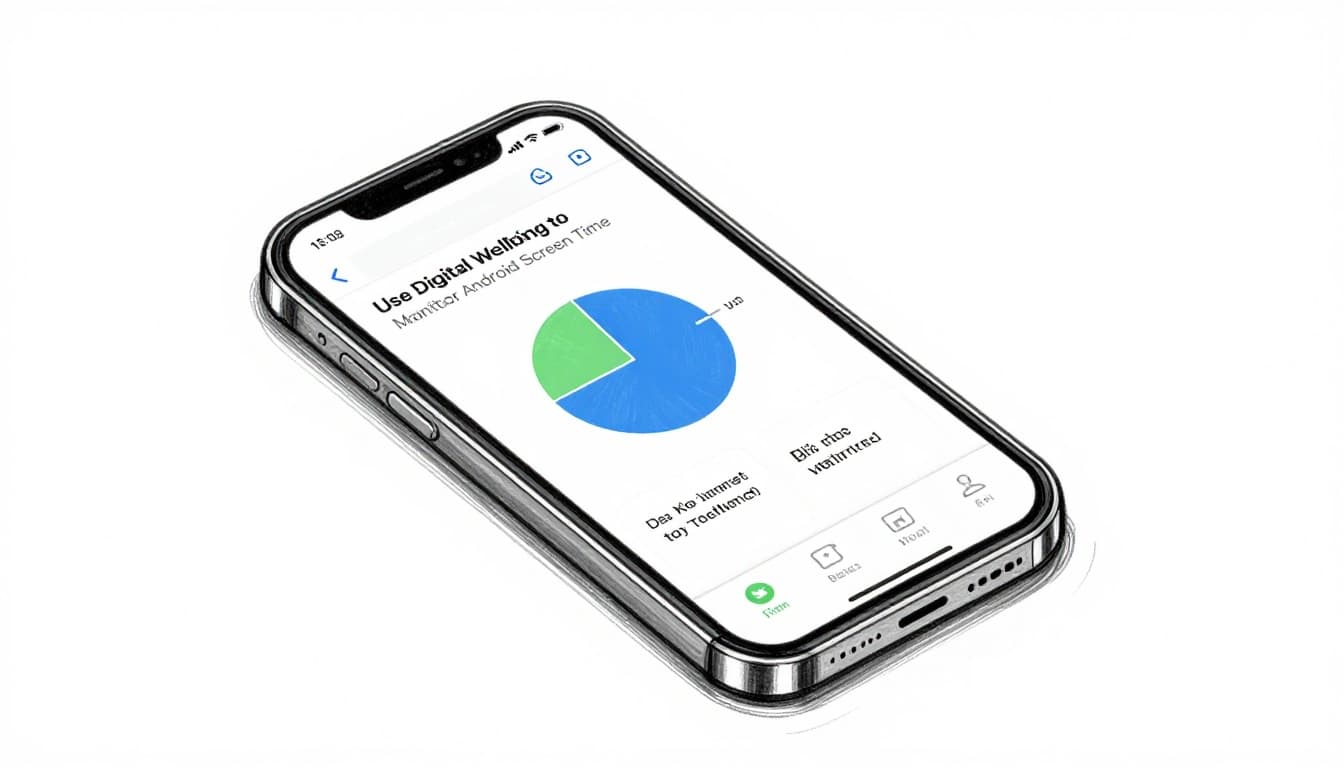
Keep it simple for beginners. Enable notifications for limit hits.
Add Parental Controls on Android with Apps like Boomerang
Built-in works, but Boomerang boosts families. Set timers, track YouTube history, get alerts. Uninstall protection locks it tight, especially on Samsung.
Install from Play Store. Link accounts. Parents control from their phone. It pairs with Digital Wellbeing for full coverage.
Set Up Screen Time Tracking on Windows and macOS
Desktop users get solid options. Windows 12 uses Settings > Time & Language > Screen Time. View daily and weekly reports. Activity history lists apps and sites.
It ties into Family Safety for kids. macOS 15, like Sonoma updates, goes Apple menu > System Settings > Screen Time. Mirrors iOS with app activity and pickups. Syncs to iPhone or iPad.
Both track active apps only. Pair Windows with Focus Assist to mute distractions. On Mac, check pickups for habits.
For Mac time trackers in 2026, explore Timing’s comparison.
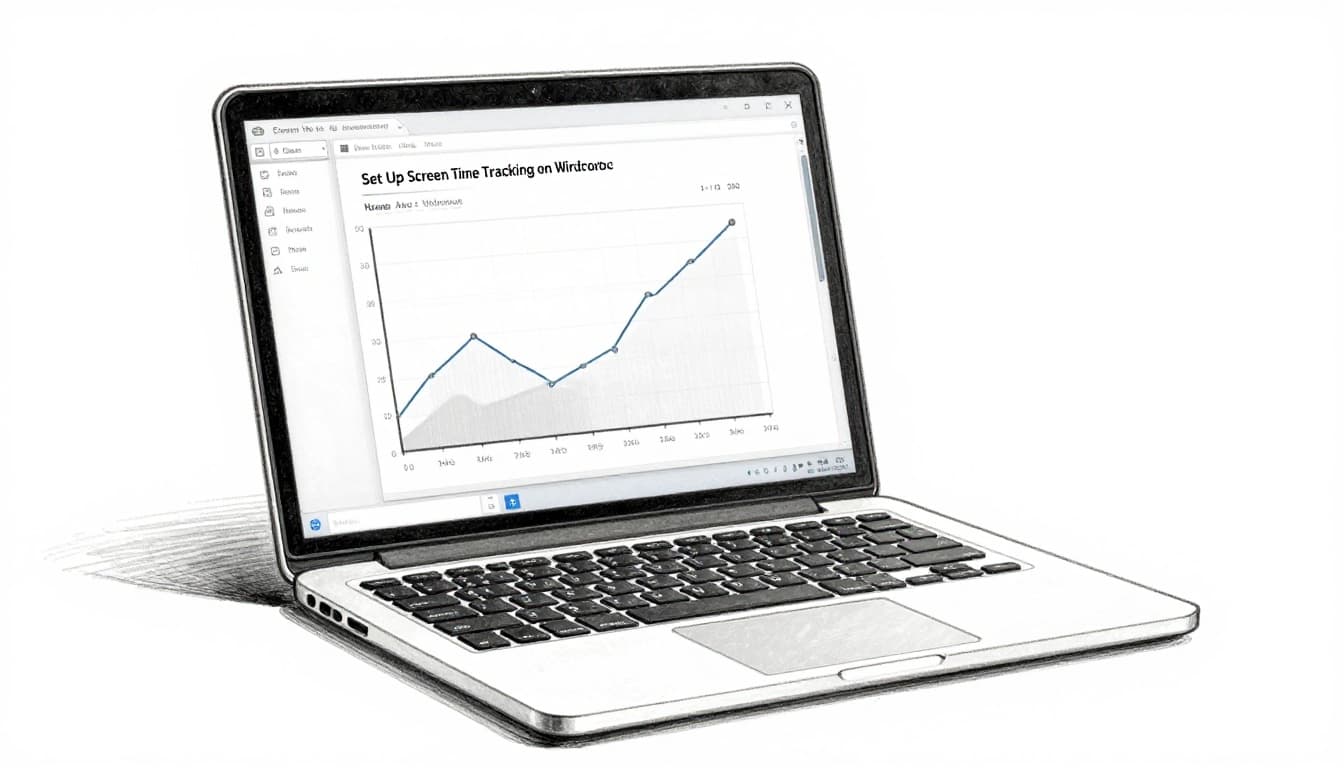
Update OS for latest accuracy.
Explore Detailed Logs with Desktop Apps like RescueTime
RescueTime auto-logs everything. Set goals and projects. See productivity scores. Timing on Mac adds document tracking.
Install, run in background. Weekly emails summarize. Great for work focus.
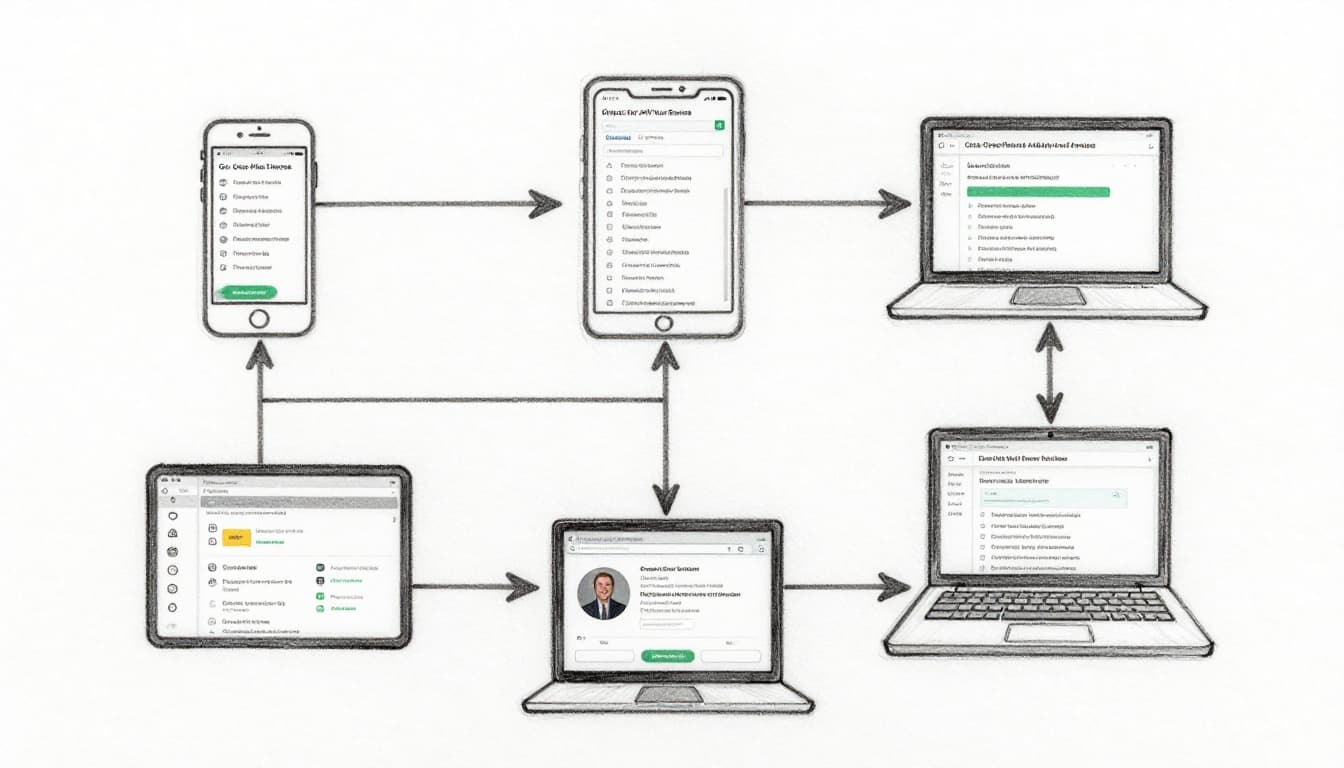
Go Cross-Platform with Apps for All Your Devices
Mix devices? Apps bridge gaps. Boomerang offers limits, alerts, geofencing for parents. Qustodio handles multi-device with location. RescueTime focuses personal goals.
Pick one to avoid overlaps. Built-in stays free for basics. Apps add limits across phones, tablets, laptops.
Enable notifications. Update for 2026 fixes. They count active screen only.
Qustodio shines for families. See a 2026 review here.
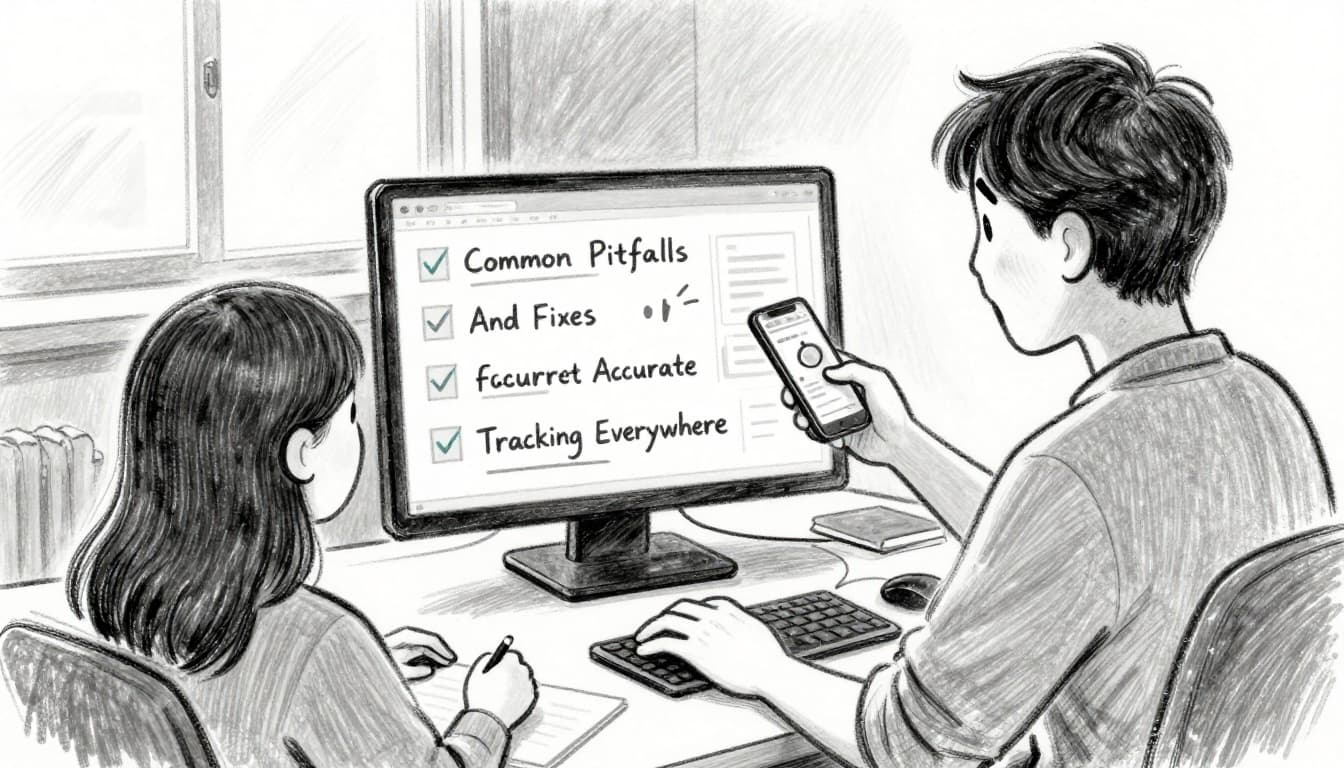
Common Pitfalls and Fixes for Accurate Tracking Everywhere
Use one tool per device or group. Multiple apps double-count.
Check what counts. Idle screens or audio skip. Background minimal.
Compare built-in to apps weekly. Update OS and apps always.
Spot surprises, like hidden habits. Adjust from there.
Built-in tools on iOS 26, Android, Windows 12, and macOS 15 make tracking easy. Follow these steps to start reports today.
Check weekly. Cut one hour daily at first. Small wins build.
Pick your device now. Track your screen time step by step. Share results in comments. Better habits mean more real-life joy. 2026 tools simplify it all.